Saturday, March 19, 2011

My Preffered Os


Install or Format Windows 7

First, insert your Windows 7 Boot Disk into your dvd drive and reboot your PC.

While the PC is rebooting, you will be prompted ” Press any key to boot from CD…” Just press any key here.


Install Windows 7 - Press any key.
After you press a key, windows will load installation files.


Install Windows 7 - Windows is loading files.
Windows 7 setup will start.


Install Windows 7 - Starting Windows Setup.
Select your language, time and currency format and keyboard input (US).


Install Windows 7 - First Setup Screen, input language, time and currency format and keyboard input method.
Click Install Now to proceed.


Install Windows 7 - Install Now Screen.
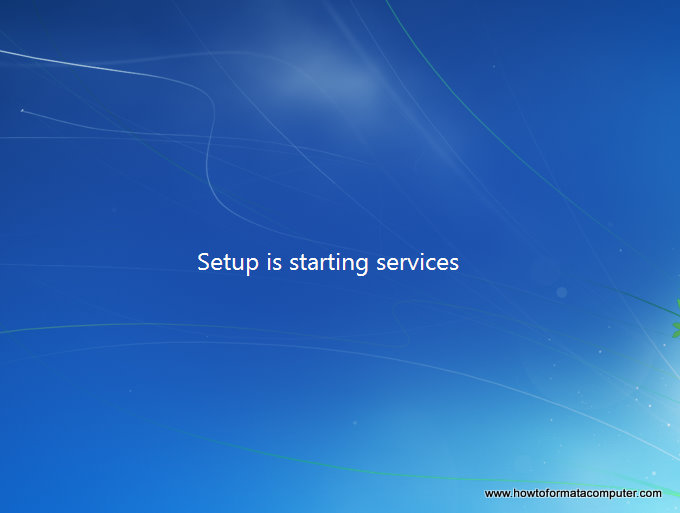
Setup will load for a min or two.


Install Windows 7 - Setup is starting.
If you do, select I accept the license terms and click Next.


Install Windows 7 - License Terms.
If you are upgrading from Windows Vista select Upgrade, if you had Windows XP you have to select Custom (Advanced). Upgrade from Windows XP to Windows 7 is not available. Click Custom (Advanced).


Install Windows 7 - Custom Install.
Select the Partition where you want to install Windows 7 and click Next. You will need at least 5716mb free space.


Install Windows 7 - Where do you want to install windows.
If you don’t have enough free space to Install Windows 7, you will receive the following warning.


Install Windows 7 - Not enough disk space warning message will appear
If that’s the case, you will need to format the partition where you previously had Operating System installed. WARNING: Formatting a partition will erase all existing data on the partition, proceed only if you have backed up all your files!
If you want to format the partition, go to Drive options.


Install Windows 7 - Drive Options.
and format the partition where you want to install windows 7. Again, do this only if you have backed up your documents/files!
click format and then yes.


Install Windows 7 - Format Windows 7 Install Partition.
After you press Next, Windows 7 Installation will begin. Approximately takes about 30 min to 1 hour to finish, depending on your computer speed.


Install Windows 7 - Setup running.
After half an hour, setup is complete and windows 7 installation is almost finished. Few more minutes.


Install Windows 7 - Setup Complete.
Now your computer will reboot, since the Windows 7 DVD boot disk is still in the drive, the message press any key to boot from DVD will appear. We already did that, so this time DO NOT press anything. Just wait 5 sec and your PC will continue booting and finish installing your operating system.


Install Windows 7 - Setup Restarts.


Install Windows 7 - Dont press anything this time.
Windows will continue booting and installing.


Install Windows 7 - Windows starts to load.


Install Windows 7 - loading...


Install Windows 7 - Completing Installation.


Install Windows 7 - Setup is preparing your computer for first use.
Insert your name (this will be your windows username).


Install Windows 7 - Type a username.
If you want to, insert password for your computer.


Install Windows 7 - Type your windows product key.
Select use recommended settings.


Install Windows 7 - Use Recommended Settings.
It’s time for Time zone, select yours from the drop down menu.


Install Windows 7 - Review your time and date settings.
Depending on your location, select the appropriate network location.


Install Windows 7 - Computer location select network.
If you have more than 1 computer, type homegroup password for sharing files. Make sure to remember it.


Install Windows 7 - Type homegroup password.
Windows is finalizing your settings.


Install Windows 7 - Windows is finalizing your settings.


Install Windows 7 - Welcome screen.
That’s it. Now insert your computer manufacturer drivers CD and install drivers. Also FYI, Windows 7 has great driver support, go to Start –> Control Panel –> Select View By = Small Icons –> Click Windows Update.


Install Windows 7 - Windows Update.
Check for updates and click on optional updates, to see which drivers windows 7 found for your computer automatically.

Finish.


Protection & Security

Introduction Of Protection And Security
  • File system often contain information that is highly valuable to their users.
  • Protecting information against unauthorized usage is therefore major concern of all file system.
  • In the following unit we will look at a variety of issues concerned with security and protection.

Security Policy and Mechanism
  • The term security and protection are often used interchangeable.
  • Nevertheless, it is frequently useful to make a distinction between the general problems involved in making sure that files are not read or modified by unauthorized persons, which include technical, managerial, legal and political issues on the one hand, and the specific operating system mechanism used to provide security on the other to avoid confusion, we will use the term security to refer to the overall problem, and the term protection mechanisms to refer to the specific operating system mechanisms used to safeguard information in the computer.
  • The boundary between them is not well defined, however.
  • A more interesting problem is what to do about intruders.
  • These come in two varieties.
  • Passive intruders just want to read files they are not authorized or read.
  • Active intruders are more malicious; they want to make unauthorized changes to data.
  • When designing a system to be secure against intruders, it is important to keep in the mind the kind of intruders one is trying to protect against.
  • Some common categories are:
1. Casual prying by non technical users. Many people have terminals to timesharing systems on their desks, and human nature being what it is, some of them will read other people’s electronic mail and other files if no barriers are placed in the way. Most UNIX systems, for example, have the default that all files are publicly readable.


2. Snooping by insiders. Student, systems programmers, operators, and other technical personal often consider it to be a personal challenge to break the security of the local computer system. They often are highly skilled and are willing to devote a substantial amount of time to effort.


3. Determined attempt to make money. Some bank programmers have attempted to break into a banking system to steal from the bank. Scheme have varied from changing the software to truncate rather than round interest, keeping the fraction of a cent for themselves, to siphoning off accounts not used in years, to blackmail.


4. Commercial or military espionage. Espionage refers to serious and wellfunded attempt by a competitor or foreign country to steal programs, trade secret, patents, technology, circuit design, marketing plans, and so forth. Often this attempt will involve wiretapping or even erecting antennas directed at the computer to pick up its electromagnetic radiation.


Authentic basic concept
  • A major security problem for operating system is the authentication problem.
  • The protection system depends on an ability to identify the programs and processes that are executing.
  • This ability in turn, eventually rests on our power to identify each user of the system.
  • A user normally identifies himself.
  • Generally, authentication is base on some combination of three set of items: user possession (a key or card), user knowledge (a user identifier and password), and a user attribute ( finger print, retina pattern, or signature).
  • The most common approach to authenticating a user identity is the use of user passwords.
  • When the user identifies herself by user id or account name, she is asked for a password.
  • If the user supplied password, matches the password stored in the system, the system assume that the user is legitimate.
1. Password
  • Passwords are often used to protect object in the computer system, in the absence of more complete protection scheme.
  • They can be considered a special case of either keys or capabilities.
  • For instance, a password could be associate with each resource such as file.
  • Whenever a request is made to use the resource, the password must be given.
  • If the password is correct, access is granted. Different passwords may be associated with different access rights.
  • For example, different password may be used for reading, appending and updating a file.
  • Although there are some problems associated with the use of password, they are nevertheless extremely common, because they are easy to understand and use.
  • The problems with passwords are related to the difficulty of keeping a password secret.
  • Password can be compromise by being guessed, accidentally exposed, or illegally transferred from an authorized user to an unauthorized one.

2. Artifact
  • A completely different approach to authorization is to check to see if the user has some item, normally a plastic card with a magnetic stripe on it.
  • The card is inserted into the terminal, which then checks to see whose card it is.
  • This method can be combined with a password, so a user can only log in if he
1. has the card
2. knows the password
  • Automated cash dispensing machine usually work this way.
  • Another technique is signature analysis.
  • The user sign his name with a special pen connected to the terminal and the computer compares it to a known specimen stored online.
  • Even better is not to compare the signature, but compare the pen motion made while writing it.
  • A good forger may be able to copy the signature, but will not have a clue as to the exact order in which the stroke were made.

3. Biometric Technique
  • Yet another approach is to measure physical characteristic that are hard to forge.
  • For example a finger print or a voiceprint reader in the terminal could verify the users identity (it make the search go faster if the user tells the computer who he is, rather then making the computer compare the given fingerprint to the entire database).
  • Finger length analysis is surprisingly practical.
  • When this is used each terminal has a device.
  • The user inserts his hand into it and the length of all his finger is measured and check against the database.

File System Management

File System Management Objectives
  • A file management system is that set of system software that provides services to users and applications related to the use of files.
  • Typically, the only ay that a user or application may access files is through the file management system.
  • This relieves the user or programmer of the necessity of developing special purpose software for each application and provide the system with a means of controlling its most important asset.
  • [GROS86] suggests the following objectives for file management system:
v     To meet the data-management needs and requirements of the user, which include storage of data and the ability to perform the operations listed earlier
v     To guarantee, the extent possible that the data in the file are valid
v     To optimize performance both from the system point of view in terms of overall throughput and from the user’s point of view in terms of response time
v     To provide I/O support for a variety of types of storage device
v     To minimize or eliminate the potential for lost or destroyed data
v     To provide a standardized set of I/O interface routines
v     To provide I/O support for multiple users in the case of multiple–user systems


Concept
  • Computer can store information on several different storage media such as magnetic disks, magnetic tapes and optical disks.
  • So that the computer systems will be convenient to use, the operating system provides a uniform logical view of information storage.
  • The operating system abstract from the physical properties of its storage devices to define a logical storage unit, the file.
  • File are mapped, by the operating system, on to physical devices.
  • This storage device are usually non volatile, so the contents are persistent thru power failures and systems reboots.


File directory
  • Associated with any file-management system and collection of files is a file directory.
  • The directory contains information about the files including attributes, location and ownership.
  • Much of this information, especially that concern with storage, is managed by the operating system.
  • The directory is itself a file, owned by the operating system and accessible by various to users and applications, information is generally provided indirectly by system routines.
  • Thus, users cannot directly access the directory even in read-only mode.
  • We can describe the most common schemes for defining the logical structure of a directory:
1.      Single level Directory
·        The simplest directory structure is the single-level directory.
·        All files are contained in the same directory, which is easy to support and understand.
·        A single level directory has significant limitation, however, when the number of the file increases or when there is more than one user.
·        Since all files are in the same directory, they must have unique names.
·        If we have two users who call their data file test, then the unique name rule is violated.
·        For example in one programming class 23 student call the program for their second assignment prog2: another 11 call it assign2.
·        Although file names are generally selected to reflect the content of the file, there are often limited in length.
·        The MS-DOS operating system allows only 11 characters file names: Unix allows 255 characters.
·        Even with a single user, as the number of files increases, it becomes difficult to remember the name of all the file, so as to create only file with unique name.
·        It is not uncommon for a user to have 100 of files on one computer system and an equal number of additional files on another system.
·        In such an environment, keeping track of so many files is a daunting task.

2. Two level directory
  • The major disadvantage to a single level directory is the confusion of file names between different users.
  • The standard solution is to create a separate directory for each user.
  • In the two level directory structures, each user has her own user file directory (UFD).
  • Each UFD has a similar structure, but lists only the files of a single user.
  • When a user job starts or a user log in, the system master file directory (MFD), is search.
  • The master file directory is index by user name or account number, and each entry point to the UFD for that user.
  • When a user refers to a particular file, only his own UFD is search.
  • Thus different users may have files with the same name, as long as all the file names within it UFD are unique.
3. Multilevel directory
  • Once have seen how to view a two level directory as two-level tree, the natural generalization is to extend the directory structure to a tree of a arbitrary height.
  • This generalization allows users to create their own subdirectories and to organize their files accordingly.
  • The MS-DOS system for instance is structured as a tree.
  • In fact a tree is the most common directory structure.
  • The tree has a root directory.
  • Every files in the system has a unique path name.
  • A path name is the path from the root through all the sub directories to a specified file.

Access Right
  • None: The user may not even learn of the existence of the file much less access it. To enforce this restriction, the user is not allowed to read the user directory that includes this file.
  • Knowledge: The user can determine that the file exists and who its owner is. The user is then able to petition the owner for additional access rights
  • Execution: The user can load and execute a program but cannot copy it. Proprietary programs are often made accessible with this restriction.
  • Reading: The user can read the file for any purpose, including copying and execution. Some system is able to enforce a distinction between viewing and copying. In the former case, the content of the file can be displayed to the user, but the user has no means for making copy.
  • Appending: The user can add data to the file, often only at the end, but cannot modify or delete any of the file’s content. This right is useful in collecting data from a number of sources.
  • Updating: The user can modify, delete and add to the file’s data. Updating normally includes writing the file initially, rewriting it completely or in part and removing all or portion of the data. Some systems distinguish among different degrees of updating.
  • Changing protection: The user can change the access rights granted to other users. Typically this right is held only by the owner of the file. In some systems, the owner can extend this right to others. To prevent abuse of this mechanism, the file owner is typically able to specify which rights can be changed by the holder of this right.
  • Deletion: The user can delete the file from the file system.

Secondary Storage Organization Program
A file may contain more than one block of secondary storage. It means few block should linking to form file. There are three methods which are:
  • Linking block
  • File map
  • Index block
Linking block
  • Every block that use to from a file will link using a pointer.
  • The pointer in UFD (User file directory) link to the first block in a chain.
  • The Problem to this method is there are many access to disk and need to be done to find the last file, for example to delete file, clear information about the earlier position of the file. 
File map
  • This method linking the block to form a file and were recorded using file map.
  • It is known as file scheduling.
  • The pointer in the file of UFD will link to the location in the map file which is representing the first block to form the file.
  • The last block will stated using zero pointers.
Index Block
  • This method will link the entire block using the index block.
  • The pointer in the UFD will link to that index block.
  • The advantage of this method is file can be accessed without parallel system.
  • While the disadvantages are too many space should be used to keep the index block. 


Input Output Management

Input Output Procedure
  • A computer system uses a device controller to facilitate the transfer of information between the device and the CPU.
  • A complex controller like small computer system interface (SCSI) may permit connecting several I/O devices simultaneously.

Buffering Concept
  • A link has some capacity that determines the number of message that can reside in it temporarily.
  • This property can be viewed as a queue of message attached to the link.
  • Basically, there are three ways that such a queue can be implemented:

·        Zero capacity: The queue has maximum length 0; thus the link cannot have any message in it. In this case the sender must wait until the recipient receives the message. The processes must be synchronized for 0a1 message. The two processes must be synchronized for a message transfer to take place. This synchronization is called a rendezvous.
·        Bounded capacity: The queue has finite length n, thus at most n message can reside in it. If the queue is not full when a new message is sent, the latter is placed in the queue (either the message is copied or a pointer to the message is kept), and the sender can continue execution without waiting. The link has a finite capacity, however. If the link is full, the sender must be delayed until space is available in the queue.
·        Unbounded capacity: The queue has potentially infinite, thus any number of message can wait in it. The sender is never delayed.

Single Buffer
  • The simplest time of support that the operating system can provide.
  • When a user process issues an I/O request the operating system assign a buffer in the system portion of main memory to the operation.
  • For block oriented devices, the single buffering scheme can be described as follows.
  • Input transfers are made to the system buffer.
  • When the transfer is complete, the process moves the block into users space and immediately request another block.
  • This is called reading ahead, or anticipated input; It is done in the expectation that the block will eventually be needed.
  • For many types of computation, this is a reasonable assumption most of the time.
  • Only at the end of a sequence of processing will a block be read in unnecessarily.

Double Buffer
  • An improvement over single buffering can be had by assigning to system buffer to the operation.
  • A process now transfer data to (or from) one buffer while the operating system empties (or fills) the other.
  • This techniques is known as double buffering or buffer swapping.
  • For block oriented transfer we can roughly estimate the transfer time as max [C,T].
  • It is therefore possible to keep the block oriented device going at full speed if C< T.
  • On the other hand, if C>T, double buffering ensures the process will not have to wait for I/O.
  • In either case, an improvement over single buffering is achieved.
  • Again, this improvement comes at the cost of increase complexity.
  • For stream oriented input, we again are faced with the two alternative mod of operation.
  • For line-at-a-time I/O, the user process need not be suspended for input or output unless the process runs ahead of the double buffers.
  • For byte-at-a-time operation, the double buffer offers no particular advantage over a single buffer of twice the length.

Spooling Technique
  • Spooling is a way of dealing with dedicated I/O devices in a multiprogramming system.
  • Consider a typical spooled device: the line printer.
  • Although it would be technically easy to let any user process open the character special file for the printer, suppose a process opened it and then did nothing hours.
  • No other process could print anything.
  • Instead what is done to create a special process, called a daemon and a special directory, called a spooling directory.
  • To print a file, a process first generate the entire file to be printed and puts it in the spooling directory.
  • It is up to the daemon, which is the only process having permission to used the printer’s special file, to print the files in the directory.
  • By protecting the special file, against direct use by users, the problem of having someone keeping it open unnecessarily long is eliminated.
  • Spooling is not only use for printers it is also used in other situation.
  • For example, file transfer over a network often uses a network daemon.
  • To send a file somewhere, a user puts it in a network spooling directory.
  • Later on, the network daemon takes it out and transmit it.
  • One particular use of spooled file transmission is the USENET network, which is primarily used an electronic mail system.
  • This network consists of thousand of machine around the world communicating by dial up telephone lines and many computer networks.